
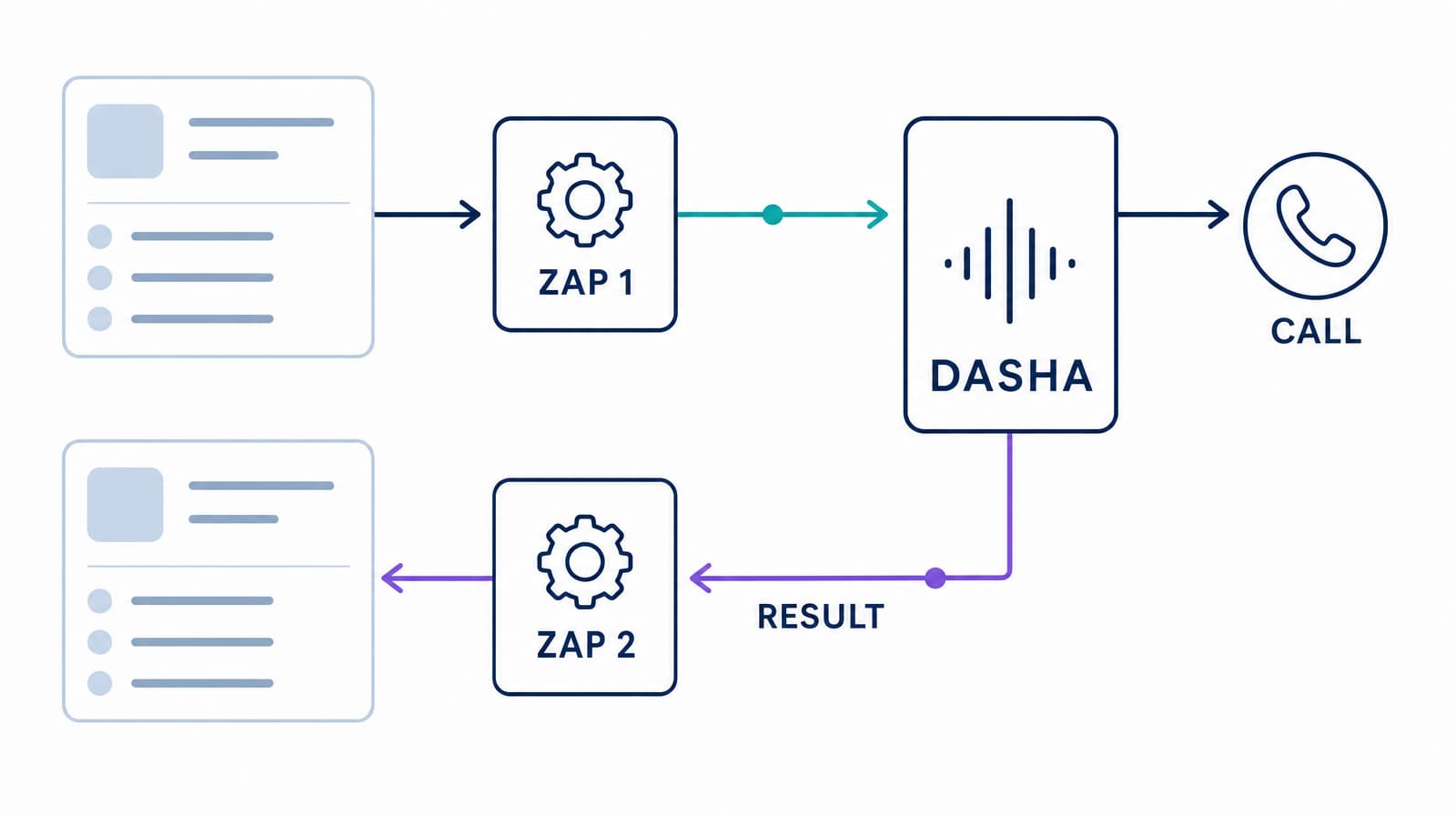
A Dasha-Zapier workflow has two separate jobs: start a voice call from a business event, then return the completed call's outcome to the system of record. Treating both jobs as one long Zap creates weak correlations and missed failures. The current setup uses Dasha's REST API for call creation and an instant Zapier webhook for results.
The right Dasha-Zapier setup for current agents
For a new Dasha agent, connect Zapier through two current interfaces:
- Zapier to Dasha: Send an authenticated
POSTrequest to the Dasha call API when a CRM, form, calendar, or database event makes a contact eligible for a call. - Dasha to Zapier: Set the Dasha agent's result webhook to a Catch Hook URL. A second Zap routes completed, failed, and deadline-expired events to the CRM, follow-up workflow, or owner.
Zapier also has a public Dasha connector. Its listed actions use Dasha's earlier application-deployment and SIP-trunk model, including Deploy Application, Make a Call, and Add an Outbound SIP Trunk. Current Dasha agents use agent IDs, call endpoints, additionalData, and result webhooks. We recommend the REST API and webhook pattern for new builds because it exposes that current data contract.
| Direction | Zapier component | Dasha interface | Purpose |
|---|---|---|---|
| Business system to Dasha | API by Zapier or Webhooks by Zapier | POST /api/v1/calls?agentId=... | Create an outbound call and pass source-record context |
| Dasha to business system | Webhooks by Zapier, Catch Hook | Agent result webhook | Return status, transcript, structured analysis, and call links |
This split matters because call creation is asynchronous. A successful API response means Dasha created the call record and accepted it for scheduling. The response can still report Created. It does not mean the recipient answered or the conversation completed. Any CRM update that depends on the conversation belongs in the webhook Zap.
Prerequisites
Prepare the call path in Dasha before building the Zaps:
- A Dasha agent that is configured, tested, and enabled.
- An outbound phone number with valid SIP credentials, linked to that agent.
- The agent ID.
- A Dasha API key from Settings > API Keys.
- A source system with a stable record ID and a phone number in E.164 format, such as
+14155550123. - Defined completion, failure, and suppression outcomes in the destination system.
The source workflow should apply your eligibility, consent, do-not-contact, local-time, and retry rules before it reaches the Dasha call step. Zapier starts the workflow. It should not be the only place where your organization stores contact policy.
Zap 1: Start a Dasha call from a business event
The first Zap turns a business event into a call request. A new CRM lead is a common trigger, but the same pattern works for appointment reminders, renewal outreach, service follow-up, and approved reactivation campaigns.
1. Choose the trigger and filter ineligible records
Select the source app and the event that creates work, such as a new form submission or a CRM stage change. Add filters before the API step so the Zap stops when any required condition is missing.
At minimum, filter for:
- a valid destination number;
- the source status that permits a call;
- the absence of a do-not-contact or suppression flag;
- a source event ID that has not already launched a call.
Filtering early avoids spending a task on a request that Dasha must reject and reduces accidental duplicate outreach.
2. Store the Dasha API credential
Dasha authenticates API requests with this header:
Authorization: Bearer YOUR_DASHA_API_KEY
There are two useful ways to make the request from Zapier:
| Option | Credential handling | Fit |
|---|---|---|
| API by Zapier | Stores the bearer header in an app connection and can restrict it to blackbox.dasha.ai | Preferred for paid Zapier accounts and shared production workflows |
| Webhooks by Zapier, Custom Request | Stores the bearer value in the Zap step, where people with edit access can read it | Fast setup for a tightly controlled Zap |
API by Zapier is a paid beta. Its static-header connection keeps an API key outside the individual step and limits the connection to selected domains. Webhooks by Zapier also supports the request, but Zapier stores credentials in plaintext step fields. Choose the route that matches your account and access controls. Zapier's API request guide explains the current credential differences.
For API by Zapier, create a connection with:
- Authentication type: Static Headers (API key)
- Header:
Authorization: Bearer YOUR_DASHA_API_KEY - Domain filter:
blackbox.dasha.ai
Do not put the key in the request URL, body, Zap name, or test record.
3. Configure the call request
Use an API Request or Custom Request action with these values:
- Method:
POST - URL:
https://blackbox.dasha.ai/api/v1/calls?agentId=YOUR_AGENT_ID - Header:
Content-Type: application/json - Body: JSON
{
  "endpoint": "{{phone_e164}}",
  "additionalData": {
    "source": "zapier",
    "crmRecordId": "{{crm_record_id}}",
    "sourceEventId": "{{source_event_id}}"
  }
}
Replace each placeholder with a field from the trigger. Keep crmRecordId and sourceEventId as strings even when the source displays them as numbers.
The required endpoint is the phone number or SIP endpoint to call. additionalData provides prompt variables and returns later as callAdditionalData in Dasha's result webhook. Use it to carry stable identifiers, safe personalization, and a campaign or tenant key when needed. Avoid copying an entire CRM record into it.
The Dasha outbound-call API also accepts optional priority, deadline, timezone, and per-call outbound configuration fields. callDeadline is the latest acceptable time for Dasha to complete the attempt. It is not a delayed-start timestamp.
4. Save the call ID immediately
A valid request returns HTTP 201 and a record that includes callId, status, and nextScheduleTime. The initial status can be Created. Add a source-system update directly after the API step:
- write
callIdto the CRM record; - set an integration state such as
call_enqueued; - record the source event ID used for this attempt;
- preserve the Zap run ID if your team uses it for support.
Do not mark the contact as reached, qualified, booked, or completed here. Those outcomes require a Dasha result webhook.
5. Test the resolved request, not just the template
Use a controlled test contact and inspect the request Zapier actually sends. Confirm that:
- the final URL contains the intended agent ID;
- the authorization header is present and hidden from logs where expected;
- the body remains valid JSON after mapped values are inserted;
- the phone number retains its leading
+; - the response
callIdis written to the correct source record.
API by Zapier does not automatically quote or escape every mapped value in a hand-written JSON body. Include test data with spaces, apostrophes, and non-ASCII characters if you pass names or notes.
Zap 2: Return Dasha call outcomes to your CRM
The second Zap starts when Dasha has a meaningful lifecycle event. It should handle completed calls, failed attempts, and expired call deadlines without depending on the first Zap run.
1. Create an instant Catch Hook
Create a new Zap with Webhooks by Zapier as the trigger and Catch Hook as the event. Zapier provides a unique HTTPS URL and parses incoming JSON into fields for later steps. A raw hook is only necessary when you need the unparsed body or request headers.
Copy the Catch Hook URL. Zapier's webhook trigger instructions describe how to capture a sample and map its fields.
2. Set the Dasha result webhook
Set the agent's result webhook to the Zapier Catch Hook URL. The Dasha webhook configuration guide covers endpoint requirements and testing. Use Dasha's webhook test to send a sample, then return to Zapier and test the trigger.
The Dasha webhook event reference identifies the three terminal result payloads this Zap should handle:
CompletedWebHookPayloadfor a successfully completed call;FailedWebHookPayloadfor a call that failed;CallDeadLineWebHookPayloadfor a call canceled after its deadline expired.
A completed payload includes fields such as:
type: CompletedWebHookPayload;callId,agentId,endpoint, andcallAdditionalData;durationSecondsandcompletedTime;result.postCallAnalysiswhen analysis labels are configured;transcription,inspectorUrl, and an optionalrecordingUrl.
A failed payload includes errorMessage. A deadline-expired payload has a canceled status and an optional reason.
3. Route each event by type
Add Zapier Paths or separate filtered Zaps for each terminal event:
| Dasha event | Destination action |
|---|---|
CompletedWebHookPayload | Update the CRM disposition, write approved analysis fields, attach the inspector link, and create any permitted follow-up |
FailedWebHookPayload | Record a failed attempt, preserve the error, and apply the retry or human-review policy |
CallDeadLineWebHookPayload | Mark the attempt as expired and return it to the scheduler or owner |
Use callAdditionalData.crmRecordId to find the destination record. Phone number matching is too weak because numbers can be shared, reformatted, duplicated, or changed. Compare the webhook's callId with the ID stored by Zap 1 before applying the update.
Configure Dasha post-call analysis for the small set of fields the next workflow needs, such as outcome, follow-up required, appointment time, or escalation reason. Structured fields are safer to map than trying to extract business state from transcript text inside Zapier.
4. Make the destination write idempotent
Dasha may retry a webhook after a server error or timeout. Treat the pair callId + type as the event's idempotency key. Before creating a task, note, or deal, search for that key or use an upsert. A repeated delivery should update the same record or stop cleanly.
This rule matters most for side effects. A duplicate CRM field update may be harmless. A duplicate calendar booking, text message, refund, or sales task is not.
5. Monitor the receiver separately
Zapier's Catch Hook acknowledges receipt before the later CRM steps prove successful. A 200 response therefore means Zapier accepted the event. It does not prove the downstream update finished.
Monitor the second Zap's task history and alert on failed actions. Preserve callId, source record ID, event type, and Zap run ID so an operator can replay the destination write without placing another call.
There is also a sharp shutdown edge:
- An active Catch Hook returns
200. - A deleted or disabled Zap eventually returns
404for its hook URL. - Dasha treats a
4xxwebhook response as a client error and does not retry it.
Before disabling the result Zap, remove or replace its URL on the Dasha agent and account for events already in flight. If a Zap is transferred to another Zapier owner, its Catch Hook URL changes, so update the agent configuration at the same time.
Security and data boundaries
An integration that can place calls and write CRM records deserves the same controls as any other production service.
- Limit credential visibility. Prefer a managed API by Zapier connection for shared workflows. Restrict it to
blackbox.dasha.ai. - Rotate on exposure. Replace the Dasha key if it appears in a screenshot, task comment, Zap name, or exported configuration.
- Pass minimum context. Include a record ID and the few fields the agent needs. Leave broad CRM objects, internal notes, and unrelated personal data in the system of record.
- Control recording and transcript access. Map recording or transcript links only to fields and teams authorized to use them.
- Keep business policy outside the prompt. Eligibility, suppression, retry count, and allowed destination actions should be deterministic workflow rules.
- Separate tenants. In a multitenant product, carry a tenant identifier and authorize every destination write against it. A CRM record ID alone may only be unique within one tenant.
When the native Dasha connector still fits
An existing Zap that already uses the earlier Dasha application and SIP-trunk model may continue to serve that existing workload. Do not replace it solely because the public connector uses older terms.
Inventory it before making changes:
- Record the connector action, connected Dasha account, application, SIP trunk, mapped inputs, and downstream outputs.
- Confirm which Dasha runtime owns the deployed application.
- Export or document the Zap's behavior and recent task history.
- Build the REST API and webhook path alongside it.
- Compare call creation, returned fields, failure behavior, and CRM results with controlled records.
- Cut over only after the new path handles every terminal state.
For current Dasha agents, the API path is the clearer contract. It avoids building a new workflow around application-deployment actions that do not expose the agent and webhook fields used by the current platform.
Production checklist
Before turning on live traffic, confirm each item:
- Zap 1 blocks suppressed, ineligible, malformed, and duplicate source events.
- Every destination number uses E.164 format.
- The Dasha API key is stored in the selected connection or restricted Zap step.
- The API credential can only be used against the intended Dasha domain.
- The call request carries stable source, tenant, and event identifiers.
- The
201response writescallIdback to the source record. - Zap 1 never treats call creation as call completion.
- Zap 2 handles completed, failed, and deadline-expired events.
- Destination writes are idempotent on
callId + type. - Structured post-call fields map to typed CRM fields.
- Transcript and recording access follows your retention and access policy.
- Zapier failures alert an operator and can be replayed without another call.
- Catch Hook ownership changes and shutdowns include a Dasha result-webhook update.
When Zapier is enough, and when to add an integration service
Zapier is a good fit when the trigger and destination already have reliable Zapier apps, the workflow has a modest number of branches, and task history gives your team enough operational visibility. It is also useful for proving a workflow before engineering a dedicated service.
Use an integration service or queue when you need strict per-tenant authorization, durable event storage, high event volume, complex schema transforms, custom retry schedules, coordinated writes across several systems, or a full audit trail independent of Zapier. The Dasha API and webhooks stay the same. Only the integration layer changes.
The boundary is practical: Dasha should own the real-time conversation and call lifecycle. Your integration layer should own contact policy, source-of-truth updates, and recovery.
Dasha-Zapier integration FAQ
Can Zapier wait for a Dasha call and use the result in the same Zap?
The call API returns when Dasha creates the call record for scheduling, before the conversation finishes. Use a second Zap triggered by the Dasha result webhook. Carry the CRM record ID in additionalData and correlate both Zaps with callId.
Can the workflow update HubSpot, Salesforce, Google Sheets, or a calendar?
Yes. Use each app's normal Zapier search, create, or update action after the Catch Hook. Keep the CRM or database as the system of record, and make any create action idempotent before enabling retries.
Can Zapier trigger bulk Dasha calls?
Dasha has a bulk-call API, but a Zap that loops over an unreviewed list can bypass eligibility and duplicate controls. For a bounded batch, validate and deduplicate every recipient first, then send the approved calls. For sustained campaign volume, use a queue or integration service with explicit pacing and recovery.
Can Dasha trigger a Zap after an inbound call?
Yes. The result-webhook pattern also applies to inbound calls. The return Zap can update the CRM, create a follow-up, or notify an owner based on CompletedWebHookPayload, FailedWebHookPayload, or CallDeadLineWebHookPayload.
Why did Dasha send a webhook but the CRM did not update?
Check the Zapier Catch Hook history first. A successful hook response only confirms receipt. The CRM action can still fail because of authentication, field validation, rate limits, or a missing record. Use the Dasha callId and the Zap run ID to replay the write without placing another call.
Build and test your agent in Dasha, then connect it to Zapier with the two-Zap contract above: one created call record, one independently recoverable result event.