Connect jambonz to Dasha by registering a Dasha voice agent as a SIP endpoint, then route calls to it from a jambonz application. This guide covers the current dashboard and REST API setup, verification, and troubleshooting.
To connect jambonz to Dasha, register Dasha as a Session Initiation Protocol (SIP) endpoint on your jambonz account. jambonz keeps control of the carrier and call-routing leg; our managed voice AI backend runs the agent. When a call reaches your jambonz application, the application bridges it to the registered Dasha endpoint.
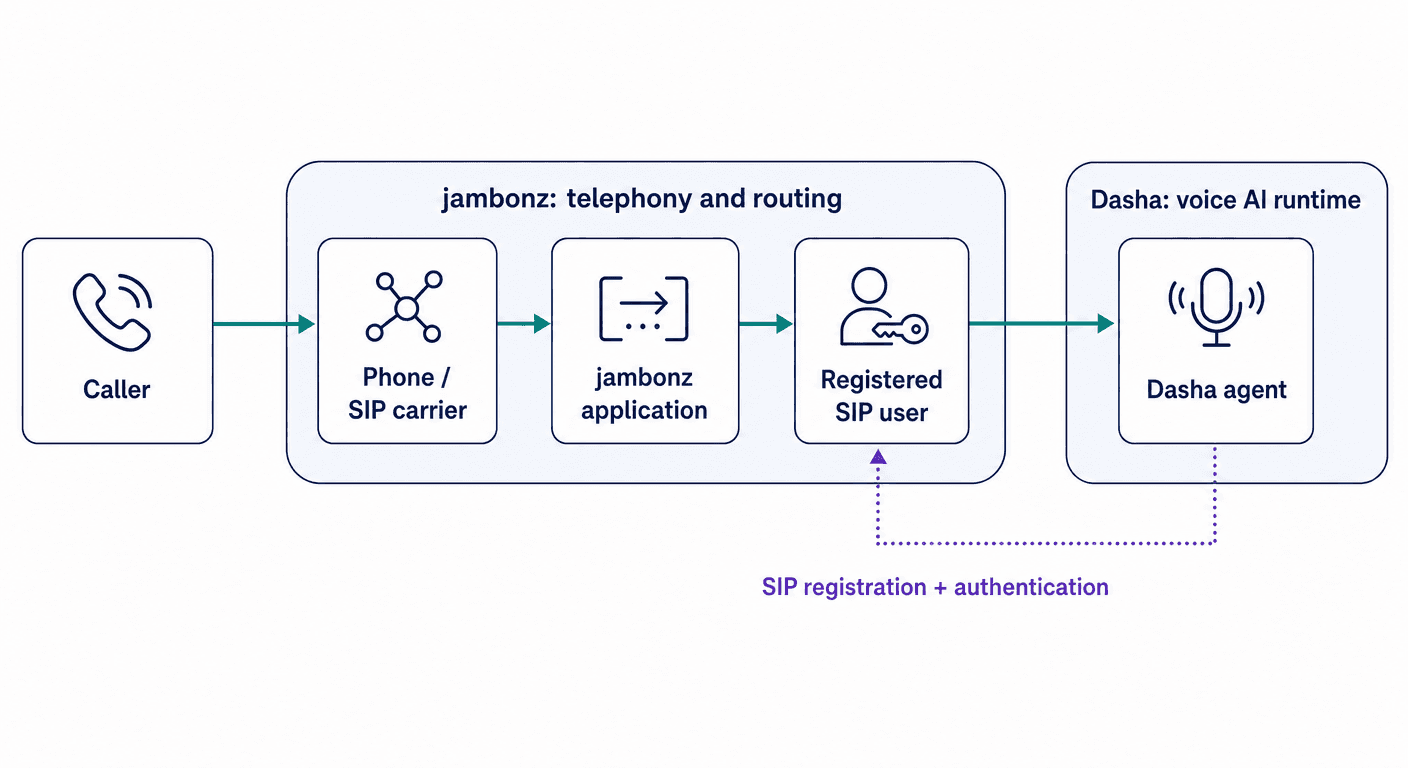
This guide covers inbound calls from jambonz to Dasha. Outbound calls initiated by Dasha need a separate outbound phone-number link and routing policy.
This setup combines each platform's documented generic SIP features; neither vendor currently publishes a one-click jambonz connector. Prove the registration and audio path in a test environment before routing production calls.
Editor's note: This is a current replacement for the original 2021 walkthrough by Dave Horton, founder of jambonz. It uses the current Dasha web app and REST API rather than the earlier CLI-based setup.
What you need
Before you configure the connection, make sure you have:
- A Dasha voice agent that passes a browser test and is enabled for calls. If you do not have one yet, follow the Dasha quickstart.
- A jambonz account with a carrier, a phone number, and an application webhook. The jambonz developer quickstart covers that base setup.
- Your jambonz SIP realm. A jambonz.cloud realm looks like
your-subdomain.sip.jambonz.cloud; a self-hosted deployment uses its own host and ports. - A static jambonz SIP user for Dasha, with a unique username and strong password.
- A Dasha API key and the target agent ID if you plan to use the REST API examples.
Do not commit the SIP password or Dasha API key to your application repository.
1. Create a SIP user for Dasha in jambonz
Open the jambonz portal and find the SIP Realm value in your account settings. A jambonz SIP realm identifies your account and is the domain against which SIP clients authenticate.
Then open SIP Users and create a user for Dasha. jambonz documents this SIP realm and static-user authentication flow. Use a unique username such as acme-dasha-7f3c, not a generic name that another Dasha organization might already use. If your telephony policy requires the international E.164 phone-number format, use a public number you control instead. Save the username and password in your secret manager.
For jambonz.cloud, the current interoperability specification lists these SIP signaling options:
| Transport | Port |
|---|---|
| UDP | 5060 |
| TCP | 5060 |
| TLS | 5061 |
Use TLS on port 5061 when it is enabled for your deployment. Otherwise, choose the transport and port that match your jambonz environment. See the current jambonz SIP interoperability specification before setting firewall rules.
2. Register Dasha with the jambonz SIP realm
Our current telephony setup separates the SIP trunk credentials from the phone-number record that uses them. You create the credentials once, add the SIP user as a phone-number record, enable registration, and link that record to the Dasha agent.
Configure it in the Dasha web app
- On the Phone Numbers page, open the SIP Credentials tab and select Add Credentials.
- Set Server to your jambonz realm and port, such as
your-subdomain.sip.jambonz.cloud:5061. - Set Auth User and Password to the jambonz SIP user you created.
- Set Domain to the jambonz SIP realm.
- Choose the matching transport, then save the credential.
- On the Phone Numbers page, open the Phone Numbers tab and select Add Number.
- Enter the same unique value you used for the jambonz SIP username, select the credential, enable Registration, and save.
- Open the new record, choose your Dasha agent under Incoming Calls Agent, and save again.
The Dasha phone-number guide describes the same credential, registration, and inbound-link model.
Configure it with the Dasha REST API
First, create the SIP credential. Replace the realm, username, and password with your own values.
curl --request POST \
  --url https://blackbox.dasha.ai/api/v1/sip-credentials \
  --header "Authorization: Bearer $DASHA_API_KEY" \
  --header "Content-Type: application/json" \
  --data '{
    "server": "your-subdomain.sip.jambonz.cloud:5061",
    "authUser": "acme-dasha-7f3c",
    "authPassword": "YOUR_SIP_PASSWORD",
    "domain": "your-subdomain.sip.jambonz.cloud",
    "transport": "tls",
    "description": "jambonz inbound trunk"
  }'
Save the id returned by this request as credentialsId. When your provider rules allow it, align the jambonz SIP username, Dasha authUser, and Dasha phoneNumber value. Our API permits provider-specific phone-number formats, but it does not expose a separate registration Address of Record field. Treat the resulting registration status as the source of truth.
Create the registered record with the same unique identifier:
curl --request POST \
  --url https://blackbox.dasha.ai/api/v1/sip-phone-numbers \
  --header "Authorization: Bearer $DASHA_API_KEY" \
  --header "Content-Type: application/json" \
  --data '{
    "phoneNumber": "acme-dasha-7f3c",
    "credentialsId": "YOUR_CREDENTIALS_ID",
    "displayName": "jambonz inbound",
    "description": "Registered endpoint for jambonz",
    "registration": true
  }'
Save that response's id as phoneNumberId. Link it to the agent for inbound calls:
curl --request PUT \
  --url "https://blackbox.dasha.ai/api/v1/sip-phone-numbers/YOUR_PHONE_NUMBER_ID/agent-link?agentId=YOUR_AGENT_ID&mode=inbound" \
  --header "Authorization: Bearer $DASHA_API_KEY"
We link one inbound agent to a phone-number record at a time. Linking the record to a different agent replaces the previous inbound link.
3. Verify the SIP registration before routing calls
Do not continue until the endpoint is registered. Retrieve the phone-number record:
curl --request GET \
  --url https://blackbox.dasha.ai/api/v1/sip-phone-numbers/YOUR_PHONE_NUMBER_ID \
  --header "Authorization: Bearer $DASHA_API_KEY"
Check two fields in the response:
registrationStatus.stateshould beSucceeded.incomingCallsAgentIdshould match your Dasha agent ID.
If registration is still in progress, wait briefly and check again. If it fails, inspect registrationStatus.errorDescription and registrationStatus.sipResponseMessage before changing the configuration.
Also confirm that jambonz lists the SIP user as actively registered with a future expiration time. You can check Registered SIP Users in the portal or use the registered-user API.
4. Route the jambonz call to Dasha
A jambonz application controls a call by returning an array of JSON verbs from its calling webhook. Use the dial verb with a registered-user target. The name must contain the exact SIP username and realm.
The route below shows the response body in a simple Express webhook. Add the jambonz request-signature middleware from the developer quickstart before exposing it to production traffic.
const express = require('express');

const app = express();
app.use(express.json());

app.post('/dial-dasha', (req, res) => {
  res.json([
    {
      verb: 'dial',
      answerOnBridge: true,
      timeout: 30,
      target: [
        {
          type: 'user',
          name: 'acme-dasha-7f3c@your-subdomain.sip.jambonz.cloud'
        }
      ]
    }
  ]);
});

app.listen(process.env.PORT || 3000);
The user target tells jambonz to dial a SIP user registered to the account realm. answerOnBridge: true keeps the inbound leg ringing until Dasha answers.
Deploy this endpoint over HTTPS. In the jambonz portal:
- Create an application.
- Set its Calling webhook to
https://your-app.example/dial-dashawith methodPOST. - Configure a call-status webhook if you want call lifecycle events in your application.
- Open the inbound phone number and assign the new application to it.
The next call to that number should invoke the webhook, dial the registered Dasha user, and bridge the audio after Dasha answers.
5. Test the complete call path
Make one controlled test call before sending production traffic.
- Confirm the Dasha registration still reports
Succeeded. - Call the number assigned to the jambonz application.
- Confirm the Dasha agent answers with the expected greeting.
- Open Calls in Dasha and verify the call appears with the expected transcript.
- Review the jambonz call detail record to confirm the application dialed the intended SIP user.
- Test hangup behavior and one failed-call case, not only the happy path.
Troubleshooting jambonz and Dasha SIP calls
| Symptom | What to check |
|---|---|
Dasha registration is Failed | Verify the jambonz realm, username, password, port, and transport. A 401 or 407 response usually points to an authentication or domain mismatch. |
Dasha returns 409 when you link the record | Choose a globally unique phone-number/SIP username, update or recreate the record with registration: true, then retry the inbound link. |
| jambonz cannot find the target user | Confirm the Dasha registration is active and the name is exactly username@realm. |
| The call reaches jambonz but never reaches Dasha | Verify the phone number is assigned to the correct jambonz application and that the calling webhook returns a JSON array with the dial verb. |
| Dasha receives the call but the wrong agent answers | Check incomingCallsAgentId on the Dasha phone-number record. |
| The agent rings but does not answer | Confirm the agent is enabled and available under its current schedule. |
| Audio works in only one direction | Check firewall and Network Address Translation rules, current jambonz Real-time Transport Protocol (RTP) allowlists and port ranges, and codec negotiation. |
| Signaling reaches Dasha but fails later | Retrieve the call's Dasha SIP traces and compare the INVITE, authentication challenge, response codes, and call teardown with the jambonz record. |
Production checklist
Before you route customer calls through the integration:
- Store the Dasha API key and SIP password in a secret manager.
- Validate requests to your jambonz webhook instead of accepting arbitrary public traffic.
- Use TLS for SIP signaling when both environments support it.
- Keep the jambonz SIP user unique to this integration so you can rotate or revoke it independently.
- Set the Dasha agent's availability and first message explicitly.
- Monitor registration state, failed calls, call transcripts, and SIP traces.
- Test your chosen carrier, transfers, Dual-Tone Multi-Frequency (DTMF) input, and expected concurrency under production-like conditions.
With registration, routing, and observability verified, jambonz can continue to own the telephony edge while we handle the conversation runtime. To evaluate the rest of the platform, start with our current voice AI setup and keep the Dasha telephony documentation alongside the jambonz dial documentation during rollout.